Please read the following article to understand how to import data to Semieta using the Data Importer tool.
NB - You will also need a copy of our template importer Excel sheet (or csv) with the correct column headers. The Excel file must be in the format '.xlsx' and a CSV file must be '.csv'.
1. All the data must be added to the spreadsheet prior to the below steps taking place.
2. Open the following pathway to the Data Importer:
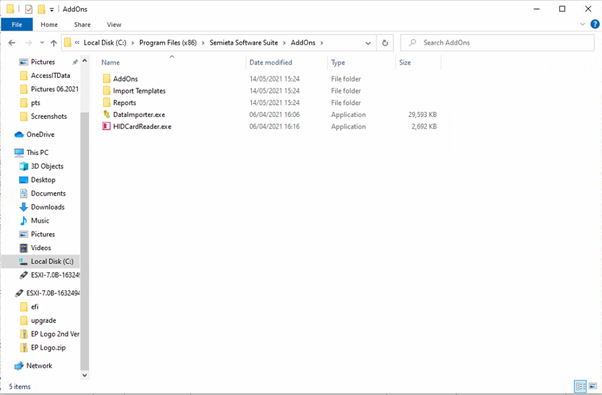
3. Click on 'DataImporter.exe' to open the application.
4. Click on 'Next' on the first window above, then the following page will ask for the import details and the destination details for the data:
From data source, you will need to select 'Excel File' (if a registered copy of Excel is on the machine), or 'CSV File' where Excel isn't installed.
5. Enter the details of the target database. These can be found in the file 'VM' in Program Data folder 'Access IT Data'. The SQL password will be hidden, so please contact your administrator for that password.
6. Click on 'Test Connection' to check that the details are correct. If the connection fails, re-enter the details into the 'Target Database section'. Click 'Next' when 'Test Connection' succeeds.
7. The below window will then present you with some options prior to import:
8. Choose the options to check/uncheck and select the dates for the Induction and Card Valid to and from dates if needed. Click on 'Next' to go to the next screen:
9. Click on 'Match Names' to assign the columns from your import data to the fields in the database (on the left 'SourceCol'. If they have not all been automatically assigned, you can manually assign them by clicking on the 'TargetCol' cell and selecting the appropriate choice from the drop-down:
10. When you are happy that all the columns have been matched up, click on 'Start Import'. The screen will look like this when completed:
11. Check the table above carefully to see if there were any 'Skipped' or 'Errors' from the import. If so, depending upon how many, you can check the log (second tab) to see what the cause of the skipped or errors were.
12. Click on 'Finish' and check in Semieta that you can now see the records you had intended to import.