How to Check Your Controllers' Open & Close Access Time Schedules
If you have set some open-access Time Schedules and your door(s) or gate(s) has not unlocked, then you can use the following steps to resolve the issue:
- Log in to Semieta and navigate to the Access Control tab:
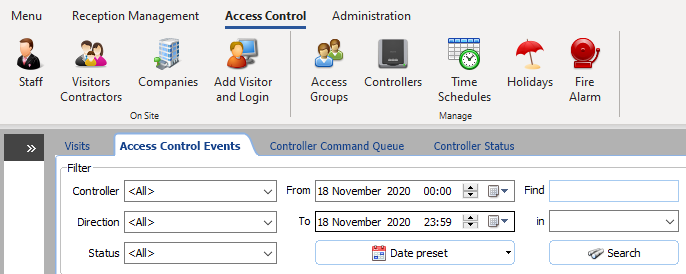
- Click on the 'Controllers' button and identify the controller that serves the door(s) or gate(s) that should be unlocking automatically. Double-click on it.
- With the Controller Settings window open, click on the 'Unlocked Door Time Schedule' tab:
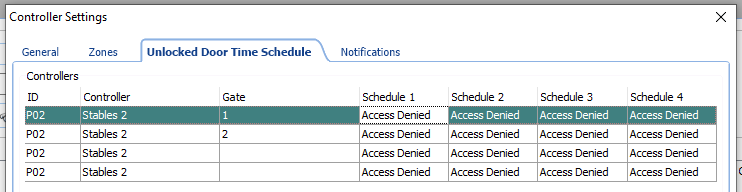
- You can now see which time schedules have been set against which doors. Each schedule has a drop down selection of alternative Schedules. Here you can select the correct time schedule for the door. *Note: the Schedules MUST be set in the order in which they would be active, starting from the left*
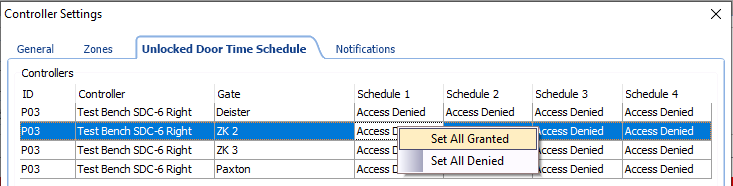
- You are also able to select multiple doors and populate them at the same time by right-clicking on the door rows in question to bring up the following options 'Set All Granted' and 'Set All Denied':
- Set and/or confirm the time schedules that you need for each door and click 'Save'.
- Now you are back in the 'Manage Controllers' view, with your controller highlighted, click the following button: 'Send Controller Parameters' followed by 'Send Time Schedules / Access Groups'.
- If the time schedules should be currently active, then your door(s) or gate(s) should unlock within a few seconds of sending the parameters in the previous step.
After you have completed the above steps to resolve why your door(s) or gate(s) have not unlocked or locked, you should visit the door(s) or gate(s) at the times when the unlock schedule should be active to check. If you are still having a problem, please collect as much information as possible and then please contact the office and request further support.