Why is My Card Not Working?
There could be a number of reasons why a card is not working:
- Your card is barred
- Your card has expired
- You do not have an Access Control Group assigned to you
- Your Access Control Group doesn't allow access to the door(s) that you have not been able to get through
- Your Access Control Group has a Time Schedule restricting access to that door(s)
- The wrong card being read (card clash)
- The card number is incorrect in your Semieta record
- Your card number is not held in the controller memory
To problem solve why your card is not working follow the below steps:
- Log in to Semieta Software Suite and navigate to the Access Control tab.
- Make sure you have the 'Access Control Events' in view.
- Identify your 'Access Denied' card swipe in the view, by filtering the view for your name:
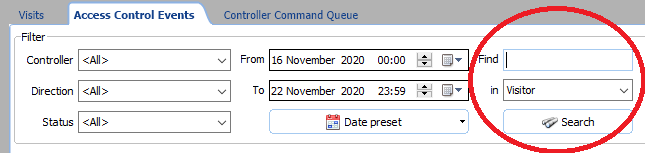
- With just your 'Name' events showing you will be able to see your last Access Denied event. It will either be followed with 'Unknown Card Number' or 'Invalid Access Time Schedule'.
If you have an 'Unknown' Card Number event, the controller simply does not know your card number. To resolve this, follow the below steps:
- Click on 'Staff' or 'Visitor/Contractors', depending on which category you come under:
- Search for your name and then open your record:

- With your record open check that your 'Valid To' date is set to be in the future:
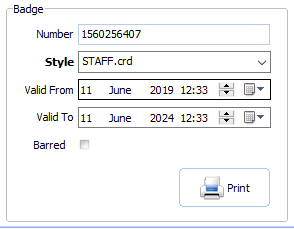
- Check that the 'Barred' tick box is not checked.
- Next, click on the 'Access Control' tab in your record:
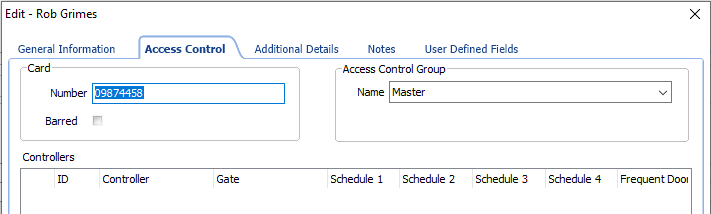
- Ensure your card 'Number' is correct by swiping it on your desk reader, then inserting the number into the card 'Number' field again.
- Check that you have an 'Access Control Group' selected.
- Click 'Save'.
- This will resend your card details out and should then allow you to use your card on the door(s) where you were denied access.
If you have an 'Invalid Access Time Schedule' event the controller is aware of your card number but there is a condition restricting your access.
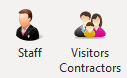
- First you need to check that your 'Access Group' allows you access to the door(s) where you were denied access. Click on 'Staff' or 'Visitors/Contractors' depending on which category you come under:
2. Search for your name and then open your record.
3. With your record open, click on the 'Access Control' tab.
4. With this tab showing, click on the 'Load Group Schedule' button in the bottom left corner. This will display which doors you are allowed access through. If the door(s) does not have a Time Schedule selected against it (Schedule 1, 2, 3, etc.), then you will need to select an alternative 'Access Group' or amend the Access Control Group settings if incorrect (see 'How can I set up/change time schedules?' article). 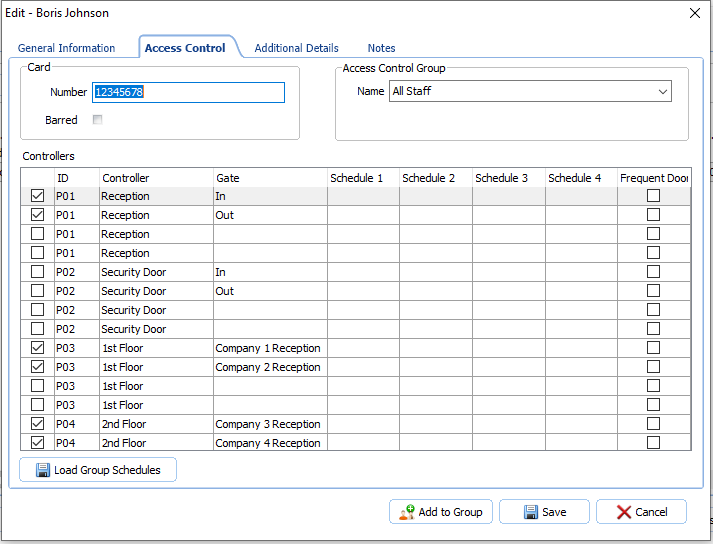
5. If your Access Group should give you access to the door(s) where you were denied Access, click 'Save' on your record.
6. Close the 'Staff' or 'Visitors/Contractors' window.
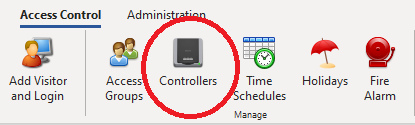
- Now you need to reload the controllers' 'Time Schedules' so that it can properly validate your Access Group. Click on the 'Controllers' button:
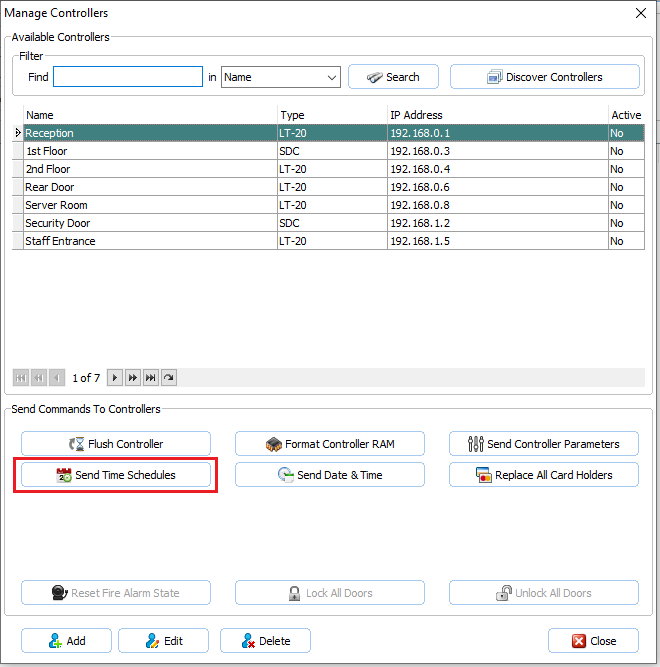
- Select the Controller that serves the door(s) that you were denied access to. Do this by single-clicking on it.
- Once you have highlighted the controller, you then need to click on the 'Send Time Schedules / AC Groups'.
- You can now close the Manage Controllers window.
After you have completed either of the above steps to resolve why your card is not working, you can go and see if your card is now granted access through the door(s). If you are still having a problem, please collect as much information as possible and then please contact the office and request further support.