How to Build a Report on a Days Access Control Events
- Log in to Semieta and click on the 'Access Control' tab.
Note - The default number of records returned on this UI is 500. If you wish to see more than 500 records (for example, for a busy site with multiple doors) you will need to change the settings in the options. To do this, click on 'Menu' in the top left hand corner of the screen, then 'Options' in the bottom-left. Select the 'Access Control' tab and then choose '0' for the number of Max. AC Events (see screenshot below):
Please note that this setting does not automatically return to the default number, so will need to be manually changed back.
2. In this view of Semieta, you can see all of the day's controller events. To filter this for just granted card swipes, click in the Status drop down and select the 'Access Granted' option.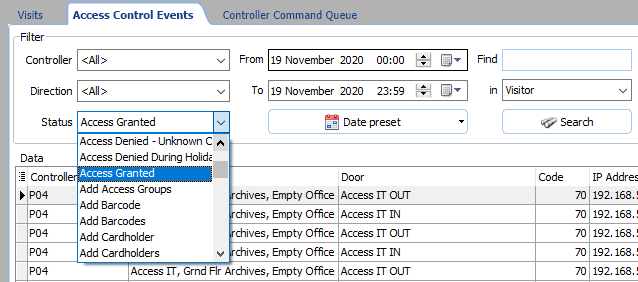
3. You may need to wait a few seconds. Once you have made your selection for the view to filter to, select 'Access Granted' Events only.
4. Once the view has changed, you can now see who has generated these swipes. To filter this down more you can use the 'Door' column heading to drop down to select one or more doors.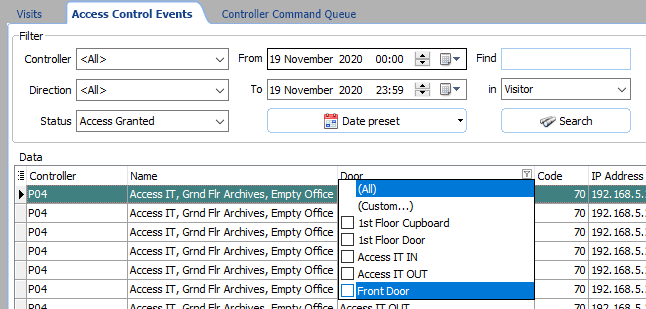
5. Once you have filtered the view to give you the data you are after, you can then export it to an Excel file for further review.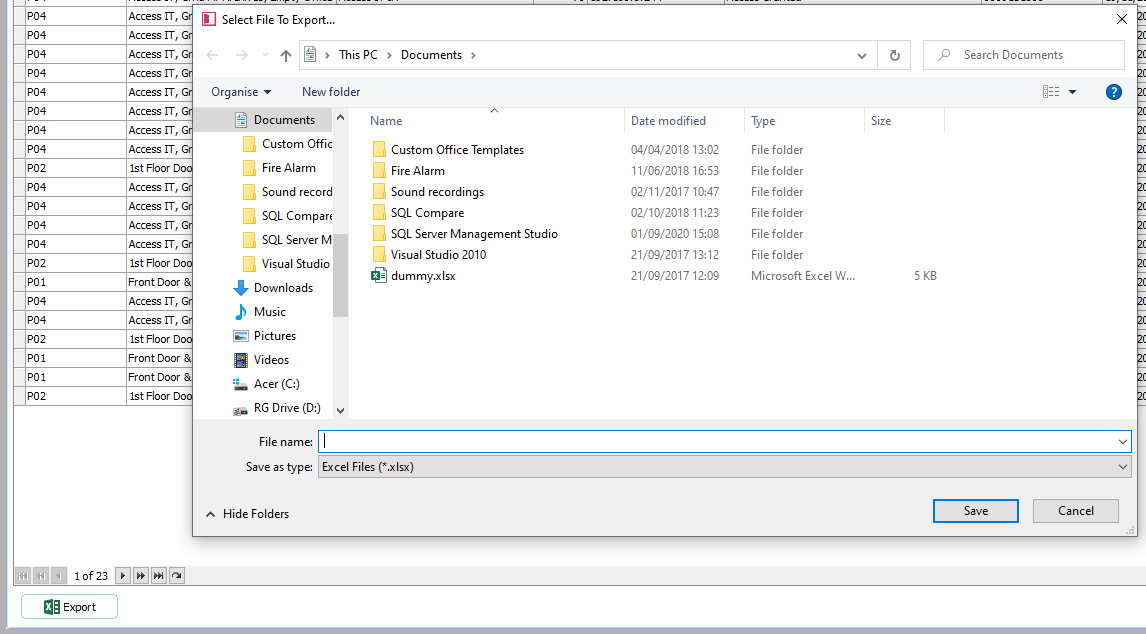
Please note that you can also view data on who has been in on a certain day by looking in the 'Visits' tab of the 'Visitor Management' tab. Note - the data will only appear if the readers have been set to read 'In' and 'Out' - you can read how to do that in the article here: