How to assign a time schedule to a specific door:
- Login in to Semieta
- Click on the 'Access Control' tab.
- Click on 'Controllers' and then select the controller that you want to change the Time Schedule for and click 'Edit' at the bottom of the window:
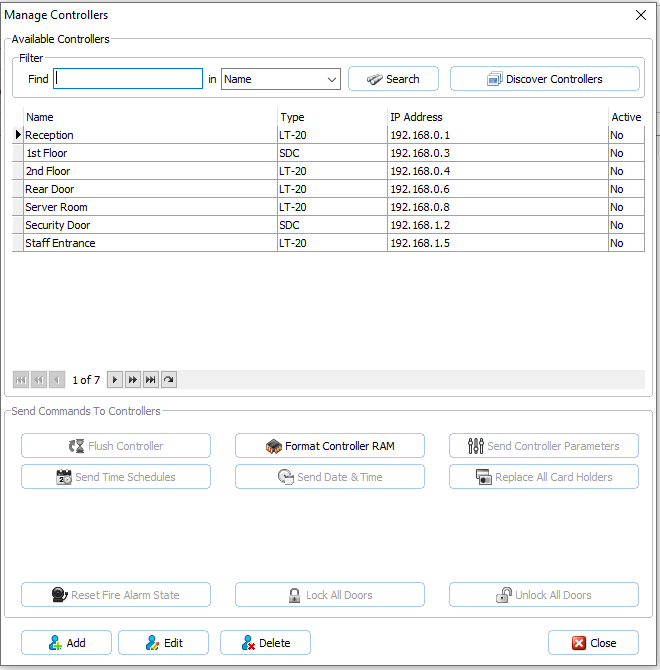
4. Click on the 'Time Schedule' tab. Here you will have a list of all the doors associated with the controller and their default Time Schedules (Access Denied)
(NB if the Schedules are all blank, please follow the steps below for your new time schedules and then fill the rest in with 'Access Denied'):
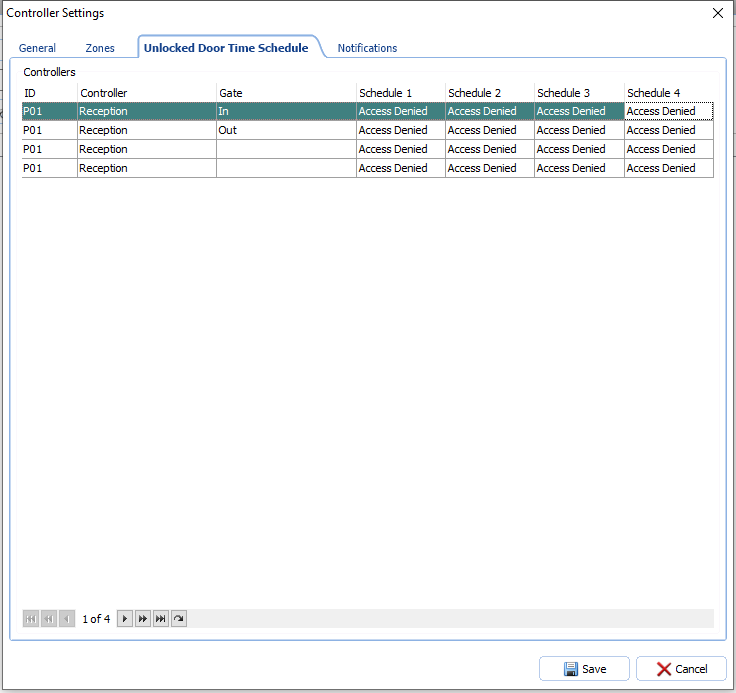
5. Each door can have four Time Schedules set against it, represented by the 4 drop-downs available on each row. Schedule 1 should be the earliest schedule that you want to happen. For example, if you want to have different open schedules for Monday, Wednesday and Friday then the Schedule for Monday goes in Schedule 1, Wednesday goes in Schedule 2, Friday in 3 and Schedule 4 would remain as Access Denied:
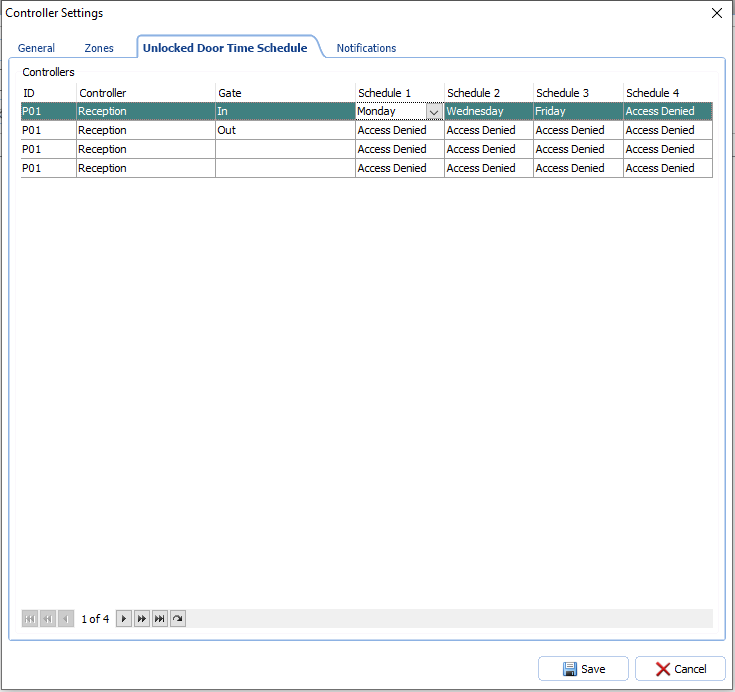
6. Once you have selected the appropriate schedules for each of your doors, click 'Save'.
7. You will now back at the 'Manage Controllers' window, with your controller still highlighted. Click the 'Send Time Schedules / AC Groups' button:

8. Close the Manage Controllers window.
Please contact support if you are unsure about any of the steps above and we will be happy to guide you further.